
Introduction
APN means Access Point Name 4G APN Settings on Android. It is the setting that lets your phone connect to mobile data. Without the right APN, your internet may not work or may stay slow. Correct 4G APN settings on Android help you get stable LTE and fast browsing.
Understanding Key APN Parameters & Terms
Every APN option has a meaning. Knowing them makes it easier to add the right details.
Name, APN, Proxy, Port
-
Name: The title of your internet profile.
-
APN: The access point given by your mobile company, like internet or web.
-
Proxy & Port: Mostly kept empty. Some networks use them to send data.
MCC, MNC, Authentication Type, APN Type
-
MCC (Mobile Country Code): Number for your country (example: Bangladesh = 470).
-
MNC (Mobile Network Code): Number for your mobile company.
-
Authentication Type: Usually PAP or CHAP.
-
APN Type: Shows the use, like default for internet, mms for messages, supl for GPS.
APN Protocol, APN Roaming Protocol, Bearer
-
APN Protocol: Choose IPv4, IPv6, or both.
-
APN Roaming Protocol: Works when you use your SIM outside your area.
-
Bearer: Picks the network type. LTE means 4G, HSPA means 3G. For fast data, keep it on LTE.
How to Access / Locate APN Settings on Android (4G / LTE)
APN settings control how your phone connects to the internet. To set them up, you need to open the APN menu.
Android Version / Brand Differences (Samsung, Pixel, OnePlus, Generic)
-
Samsung: Settings → Connections → Mobile Networks → Access Point Names
-
Pixel: Settings → Network & Internet → Mobile Network → Advanced → Access Point Names
-
OnePlus: Settings → Wi-Fi & Internet → SIM & Network → Access Point Names
-
Other Android phones: Go to Mobile Network → Access Point Names
Step-by-Step to Open APN Menu
-
Open the Settings app on your phone.
-
Tap Network & Internet. On Samsung, tap Connections.
-
Select Mobile Network.
-
Tap Access Point Names (APN).
-
Here you can view, add, or edit APN details.
When “Add New APN” Is Disabled or Greyed Out
Sometimes the Add APN option is blocked.
This may happen if:
-
Your phone is locked to one carrier.
-
The SIM has fixed APN settings.
-
A work profile has restricted APN changes.
-
The phone software has an error.
If you cannot add APN on Android, try another SIM or contact your mobile company.
Step-by-Step: Configuring 4G APN Settings Manually
If your phone does not connect to the internet, you can set up the APN by hand. Here is how to do it step by step.
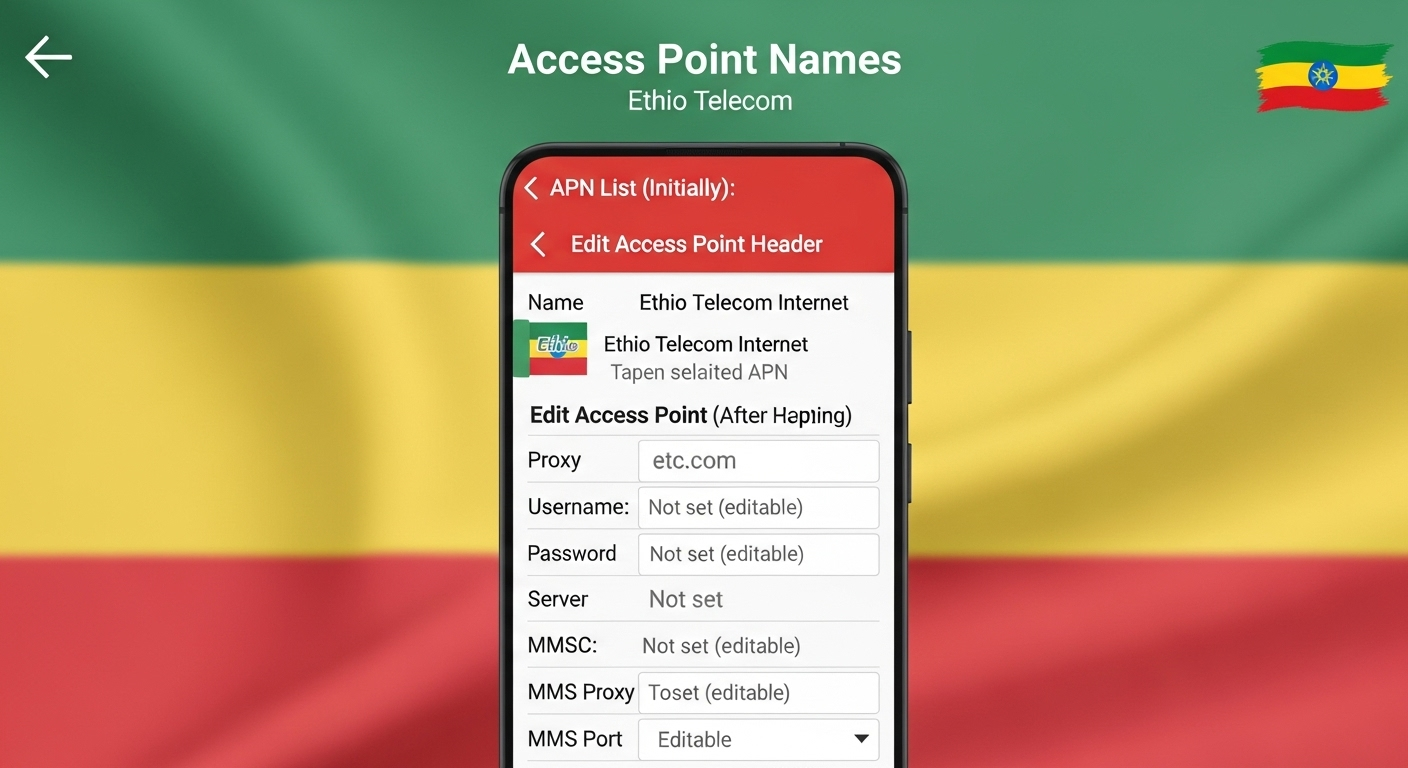
How to Create / Add a New APN Profile
-
Go to Settings → Network & Internet → Mobile Network → Access Point Names.
-
Tap Add or the + sign.
-
A new APN page will open.
Filling Each Field (Name, APN, etc.) — What Values to Use
Type the details given by your mobile operator. If no value is needed, keep the box empty.
Example APN values:
-
Name: Internet
-
APN: internet
-
Proxy / Port: leave empty
-
Username / Password: leave empty
-
MCC / MNC: auto-filled
-
Authentication type: PAP or CHAP
-
APN type: default,supl
Save, Select, and Activate the New APN
When done, tap the menu and press Save. Select the new APN from the list.
Reboot / Restart Device to Apply Changes
Restart your phone after saving. This makes the new APN work right away.
Sample 4G / LTE APN Settings by Carrier / Region
Below are common APN settings for different countries. You can copy them directly into your phone.
United States Carriers (Verizon, AT&T, T-Mobile)
| Carrier | APN | Notes |
|---|---|---|
| Verizon | vzwinternet | Keep others empty |
| AT&T | phone | Works for LTE data |
| T-Mobile | fast.t-mobile.com | Works for 4G/5G |
UK / Europe Carriers (Vodafone, EE, O2)
| Carrier | APN | Notes |
|---|---|---|
| Vodafone | internet | Works for 4G |
| EE | everywhere | LTE supported |
| O2 | mobile.o2.co.uk | Leave others empty |
Asia / India / Southeast Asia Carriers (Airtel, Jio, Digi)
| Carrier | APN | Notes |
|---|---|---|
| Airtel | airtelgprs.com | Default for 4G |
| Jio | jionet | LTE supported |
| Digi MY | diginet | Malaysia network |
Other Regions (Africa, Latin America)
| Carrier | APN | Notes |
|---|---|---|
| MTN | internet | Used in many areas |
| Telcel MX | internet.itelcel.com | User/pass: webgprs |
| Claro BR | claro.com.br | Works for 4G data |
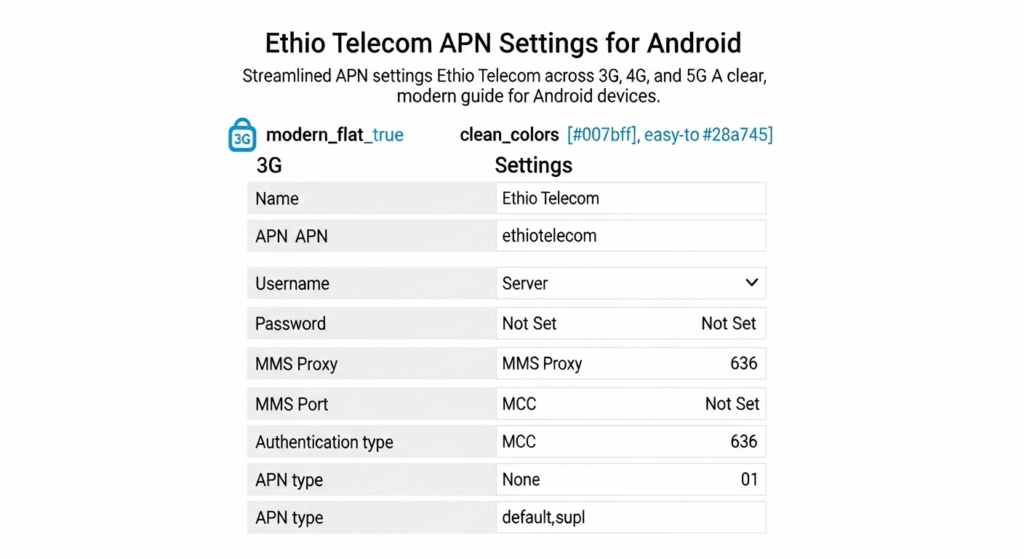
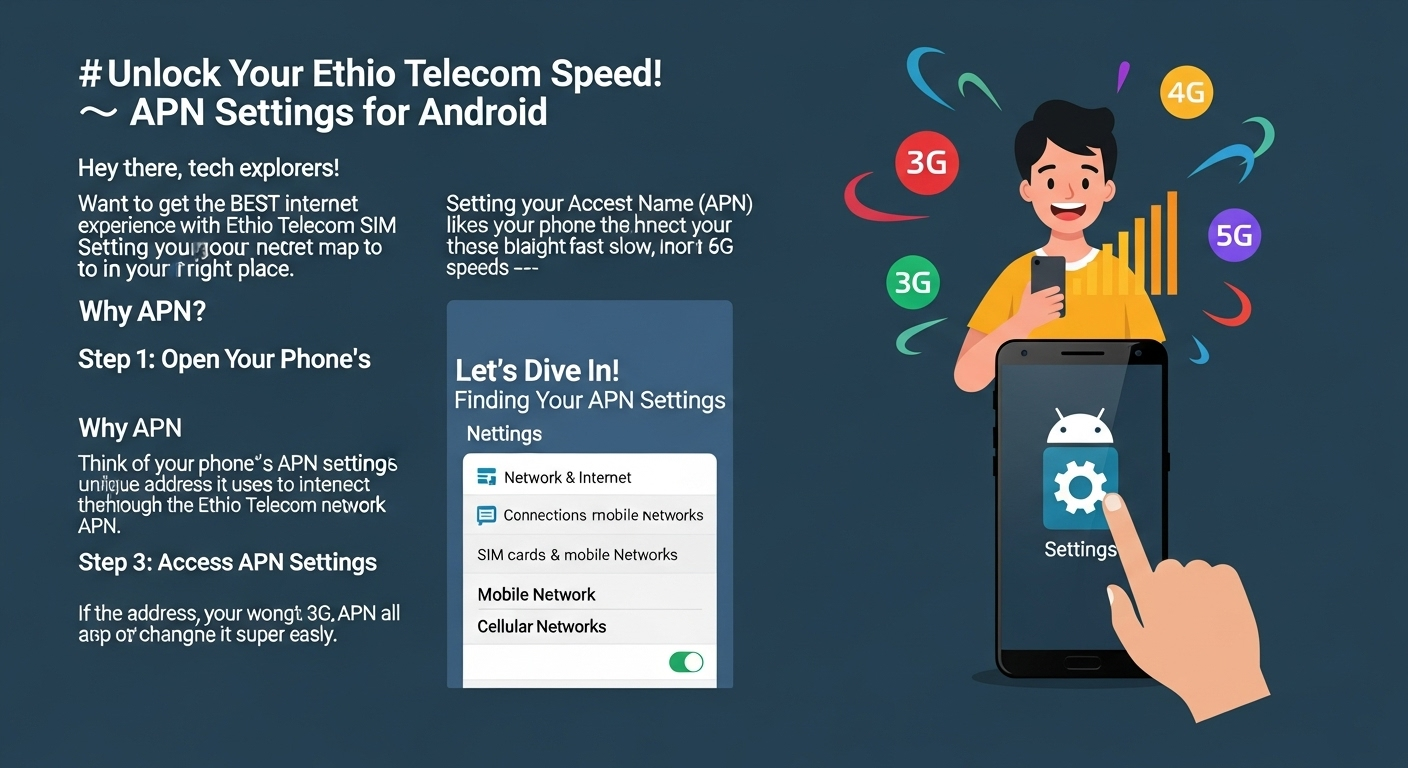
Ethiopia Ethio Telecom 3G, 4G, and 5G APN Settings (Android)
| Field / Option | Value for Ethiopia (Ethio Telecom / ETC) |
|---|---|
| Name | Ethiotelecom (or ETC) |
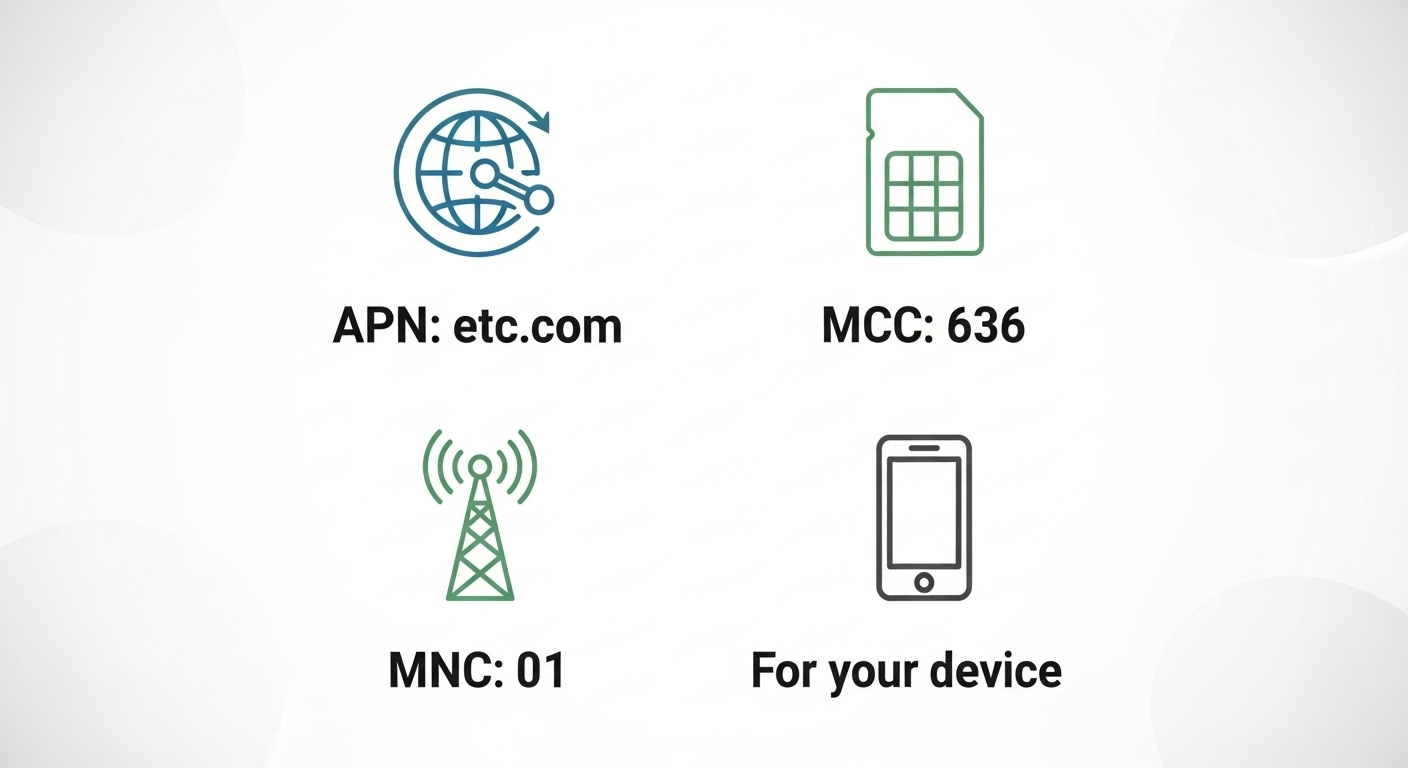
| APN | etc.com |
| Proxy | Not set / Leave blank |
| Port | Not set / Leave blank |
| Username | Not set / Leave blank |
| Password | Not set / Leave blank |
| Server | Not set / Leave blank |
| MMSC | Not set / Leave blank (for data) |
| MMS Proxy / MMS Port | Not set / Leave blank |
| MCC | 636 |
| MNC | 01 |
| Authentication Type | Not set / None / PAP or CHAP optional |
| APN Type | default (and sometimes supl) |
| APN Protocol | IPv4 |
| APN Roaming Protocol | IPv4 |
| Bearer | Unspecified (works for 3G / 4G / 5G) |
| MVNO Type / Value | None / Not set |
Troubleshooting Common Issues & Solutions
Sometimes the internet may still not work after setting up the APN. Here are the most common problems and easy fixes.
No Mobile Data / “No Internet” After Setting APN
If mobile data does not work after adding the APN, check if the APN is active. Make sure data is turned on and airplane mode is off. If it still shows no internet, restart your phone or re-enter the APN values.
MMS / Picture Message Fails to Send
If you cannot send or receive picture messages, check the MMSC and MMS proxy fields. They must be filled with the values from your carrier. Without the right MMS APN, picture messages will fail.
APN Not Saving / Getting Reset / Cannot Edit
If your APN does not save or resets after reboot, the phone may be carrier-locked. Some Android phones also block APN changes when using certain SIM cards. Try removing the SIM, re-adding it, and then setting the APN again.
APN Conflicts (Multiple Profiles) / Selecting Wrong APN
If you see many APN profiles, your phone might be using the wrong one. Open the APN list and select the correct APN for your carrier. Delete old or unused profiles if possible.
Speed / Latency / 4G Fallback / Stuck on 3G
If your internet feels slow after changing APN, check the Bearer setting. Make sure it is set to LTE for 4G. If it keeps dropping to 3G, recheck the APN fields or reset to default and try again.
Resetting / Restoring Default APN & Backup Strategies
If nothing works, you can reset your APN back to factory settings. You can also back up your APN details before making changes.
How to Reset APN to Android Default
Go to Settings → Network & Internet → Mobile Network → Access Point Names. Tap the menu and choose Reset to default. This will restore the original APN from your carrier.
Backing Up Your APN Settings / Exporting Profile
Before editing, you can write down the APN values or take a screenshot. Some Android phones also let you export the APN profile to a file. This way you can restore it later.
When to Manually Reconfigure (After OS Update, SIM Change, Roaming)
You may need to re-enter APN details after a software update, SIM swap, or when using roaming. Carriers sometimes reset or change APN during these events. Always keep a copy of your APN for quick setup.
Advanced Tips, Best Practices & Security
Use IPv4 vs IPv6 / Mixed Protocol (IPv4/IPv6)
Some phones let you choose between IPv4, IPv6, or both. If your carrier supports dual stack, keep it on IPv4/IPv6 for better speed and stability.
Restricting APN Use for Specific Services / APN Type Filtering
You can set APN types like default, supl, mms, or ia. For normal internet, keep it on default,supl. If you want data only and no MMS, remove mms from the list.
APN and VPN / Tethering / Hotspot Considerations
Some APNs block tethering or hotspot use. If hotspot does not work, check if your carrier needs a special APN for it. VPNs usually work with any APN, but speed may change depending on the network.
Why Some Carriers Push Auto-Configuration / Over-the-Air (OTA) APN
Many carriers send APN settings by SMS or auto-install after you insert the SIM. This is called OTA configuration. It helps users avoid manual setup, but sometimes you may still need to edit by hand.
When Should You Manually Configure APN? Use Cases
Switching Carriers (SIM Change, Unlocked Devices)
If you put a new SIM in an unlocked phone, the APN may not auto-load. You will have to add it manually for data to work.
Traveling / International Roaming
When you travel abroad, internet may not work with your home APN. Add the local APN from the roaming carrier to use mobile data.
Fixed-Wireless / Mobile Router / IoT Device Using Android-Like Interface
Some 4G routers and IoT devices need you to type in APN details. Use the same values as a normal Android phone for that carrier.
Troubleshooting Connection / Connectivity Issues
If mobile data is slow or not connecting, recheck your APN fields. Wrong values are a common reason for internet issues.
FAQ on 4G APN Settings for Android
Q1. What is an APN on Android?
APN means Access Point Name. It lets your phone connect to mobile data and the internet.
Q2. How do I open APN settings on Android?
Go to Settings → Network & Internet → Mobile Network → Access Point Names.
On Samsung, it’s under Connections → Mobile Networks.
Q3. Why is my mobile data not working after APN setup?
Check if the APN is active. Restart the phone and recheck values if internet still does not work.
Q4. Can I use the same APN for 4G and 5G?
Yes, most carriers use the same APN. If 5G is supported, it works with your 4G APN settings.
Q5. What to do if “Add APN” is greyed out?
This happens on locked phones or fixed SIM cards. You may need to contact your carrier for changes.
Q6. Do I need different APN settings for roaming?
Sometimes yes. Local carriers abroad may need you to enter a new APN.
Q7. How do I reset APN to default?
Go to Access Point Names → Menu → Reset to default. It restores the original carrier APN.